PDF Pro: Edit, Sign & Fill PDF
PDF Office LabProductivity
4.11.41K Reviews
- Version
- 7.4.3
- Installs
- 10.00M
- Age Rating
- Everyone
Screenshots
Our Review of PDF Pro: Edit, Sign & Fill PDF
 Analysis by Appyee
I approached PDF Pro: Edit, Sign & Fill PDF as a practical mobile productivity tool rather than as a replacement for a full desktop office suite. Its appeal is straightforward: it brings several common PDF jobs into one Android app, so I can open a document, mark it up, add a signature, fill a form, and make limited edits without moving between several unrelated tools. That sounds simple, but the real value appears in the small workflows around those tasks.
PDF files are often awkward on a phone. A document may arrive in an email when I am away from my computer, a form may need a signature before a deadline, or a colleague may ask for a quick correction rather than a complete rewrite. In those situations, having one place for viewing and handling the file is convenient. I found the app most useful when I treated it as a focused document utility: quick to open, easy to understand, and best suited to finishing a specific PDF job rather than managing an entire office.
How the everyday PDF workflow feels
The basic routine is easy to understand. I start by opening a PDF, move to the page that needs attention, choose the relevant action, and then review the result before saving or sharing it. The app’s combination of PDF editing, annotation, signing, and form filling makes it more flexible than a viewer that only displays pages.
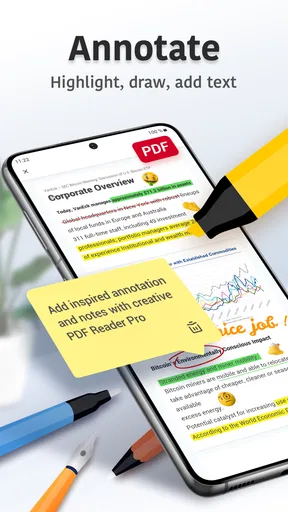
Annotation is especially useful for documents that do not need permanent rewriting. I can use it to draw attention to a sentence, add a note beside a clause, or mark a section for later discussion. That distinction matters: a highlight or comment communicates feedback without pretending that the original document has been rewritten. For reviewing a contract draft, studying a handout, or checking a work proposal, this is often the safer approach.
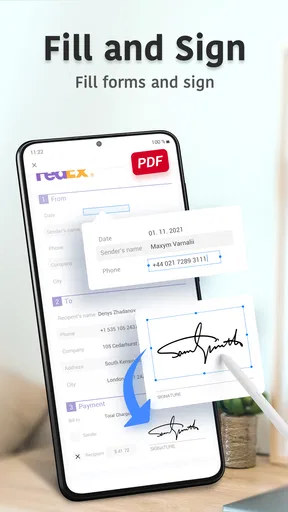
When a document requires a signature, the advantage is less about advanced document management and more about avoiding unnecessary steps. Instead of opening the file in one app, creating a signature somewhere else, and trying to place it back into the PDF, I can handle the task in the same workspace. I still recommend zooming in and checking the signature’s position before finalizing, especially on forms with narrow boxes or several similarly labeled fields.
Filling a form on a phone can be fiddly, but the app makes sense for short documents and occasional requests. I would use it for a permission form, a simple application, or a one-page document sent by email. For a long tax document or a form with complicated calculations, I would rather use a larger screen. The phone is convenient, but screen size remains a real limitation even when the software is capable.
A realistic example is receiving a school or work form while commuting. I can open the attachment, read the instructions, enter the requested details, sign it, and save the completed copy for sending later. The important habit is to keep the original untouched and save the completed version separately. That simple distinction prevents the common mistake of losing the blank form that someone else may need.
The app is free to install, which lowers the barrier for occasional users. It includes in-app purchases ranging from around two dollars to around one hundred fifty dollars per item, so I would check the purchase screen carefully before committing to a feature or subscription-style option. For someone who only needs to sign a document once in a while, the free starting point may be enough; someone using PDF tools every day should decide whether the paid options justify the cost for their particular workflow.
What I would check before doing serious work
Before editing an important document, I would first open a copy rather than the only original. Mobile editing is convenient, but it is also easy to tap the wrong control or overwrite a file without noticing. A repeatable routine helps: duplicate the source, make the changes, save with a clear name, close the file, and reopen the saved copy to confirm that the result looks right.
I also pay attention to the page view and zoom level. A signature or text box can appear correctly placed while zoomed in but sit slightly outside the intended area when the whole page is visible. I find it useful to zoom out after every major placement, particularly on forms where alignment matters. This is a small habit, yet it catches mistakes that are hard to spot in a cropped view.
Another worthwhile check is the document’s structure. A PDF that looks like editable text may actually be a scanned image. In that case, marking it up can still work, but changing existing words may be much less straightforward than editing a digitally created document. I would not assume that every visible line can be selected and rewritten just because it looks like ordinary text on screen.
The app comes from PDF Office Lab and targets general productivity rather than a specialist legal, publishing, or design audience. That focus is helpful because the interface is aimed at common tasks, but it also shapes my expectations. I would use it for everyday PDFs, not for complex desktop publishing, detailed page composition, or a document workflow that requires extensive collaboration and version control.
Its current version is 7.4.3 and it runs on Android devices using version 5.0 or later. That broad compatibility makes it accessible on older phones and tablets, although the experience will naturally depend on the device’s screen, processing power, and available storage. On a small phone, detailed page work takes more patience than it would on a tablet.
Settings and habits that make the app easier to live with
I would spend a few minutes exploring the app’s available controls before handling a document that matters. The most useful settings are not necessarily dramatic features; they are the choices that affect how I open files, move through pages, and save finished work. Learning where those controls live reduces hesitation later, especially when a form arrives unexpectedly.
File naming deserves more attention than it usually gets. A name such as “completed-form” is better than leaving several copies with automatic names, but adding the document’s purpose and status is even clearer. I prefer a simple pattern such as the original title followed by “signed” or “reviewed.” This makes it easier to identify the correct attachment when sharing from a phone.
I also recommend checking the final page count and the placement of annotations before sending anything. A note can be added to the wrong page if I am moving quickly, and a completed field can be missed when a document contains repeated sections. A fast page-by-page scan is more reliable than assuming that the first successful edit means the whole file is ready.
For sensitive documents, I would think carefully about where the file is opened, saved, and shared. The app is useful for handling personal paperwork, but convenience should not replace ordinary caution. I avoid editing confidential files while connected to an untrusted network, and I do not send a document until I have checked the recipient and attachment. Those are workflow decisions rather than app features, but they matter more than a flashy editing tool.
One setting-related trade-off is the difference between speed and control. If I only need to read a document, I do not want to enter an editing flow accidentally. If I need to complete a form, I want the editing tools close at hand. I found that the best approach is to decide the task first—read, annotate, sign, fill, or edit—and then use only the tools required. This keeps the interface from becoming distracting.
Faster patterns for repeat users
Experienced use is less about discovering a secret button and more about repeating a reliable sequence. My preferred pattern is: open a duplicate, inspect the full document, perform the smallest necessary change, zoom out to verify it, save with a status-based filename, and reopen the result. It sounds cautious, but it becomes quick once it is familiar.
For review work, I separate comments from corrections. I use annotations when I want another person to decide what should change, and I edit text only when the correction is clear and appropriate. This prevents a marked-up draft from looking like a finalized document. It also makes feedback easier to understand because the reader can distinguish my suggestions from the original wording.
For signatures, I prepare the document first. I fill in the non-signature fields, inspect the pages, and add the signature near the end. Doing it in that order reduces the chance of placing a signature on a draft that later needs to be changed. After signing, I save a separate final copy and avoid continuing to experiment in the same file.
For repeated forms, I keep a clean blank version and a separate working copy. This is one of the most useful habits for anyone who handles forms regularly. It means I can start again without removing old answers one by one, and it reduces the risk of sending a document that still contains information from a previous submission.
When a PDF is several pages long, I do not edit from the first page straight through automatically. I first identify the pages that actually need action, then work through those pages in a deliberate order. This is faster than repeatedly scrolling through irrelevant material, and it lowers the chance of missing a field hidden near the end.
The app’s broad adoption—more than ten million installs and an average rating of 4.1 from roughly one hundred eleven thousand ratings—suggests that it has found a substantial audience for this kind of mobile PDF work. I would still treat popularity as a starting point, not proof that it fits every workflow. The right question is whether its all-in-one approach matches the documents I handle.
Where the all-in-one approach reaches its limits
The biggest limitation is the phone itself. Editing a paragraph on a small touchscreen is slower and less precise than working with a keyboard and mouse. If I need to restructure several pages, compare two versions side by side, or make extensive wording changes, I would choose a desktop PDF editor or office application instead.
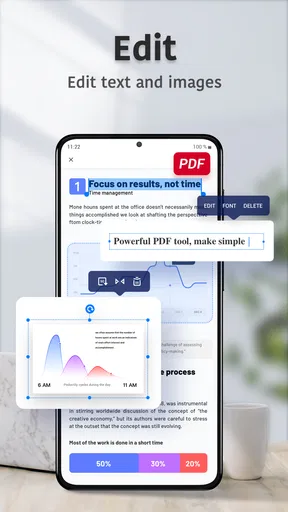
There is also a difference between annotating a PDF and truly rebuilding it. Notes, highlights, signatures, and form entries are practical mobile tasks. Complex layout changes, font matching, image repositioning, and document-wide formatting are more demanding. I would not choose this app as my main tool for preparing a polished brochure, revising a long report, or repairing a badly converted document.
Scanned files can create another point of friction. If the page is essentially a photograph, editing the original wording may not behave like editing a text document. In that situation, I would use the app for annotations or signatures and move to a dedicated text-recognition or desktop workflow if the underlying words must be changed extensively.
Users who need advanced collaboration may also prefer another category of tool. PDF Pro: Edit, Sign & Fill PDF is strongest as an individual utility for completing a task. It is less compelling when a team needs shared comments, formal approval stages, detailed revision history, or centralized document administration. Those needs call for a broader document-management platform.
The purchase range is another reason to be deliberate. The app is free, but optional paid items can become significant at the upper end of the listed range. I would try the free experience with a non-critical document first, identify which functions I actually use, and only then decide whether paying makes sense. Someone who signs one document every few months should not assume that a premium plan is automatically good value.
The age rating is Everyone, which fits the app’s general-purpose productivity role. That does not mean every document is suitable for every reader, of course; the content comes from the files I open. I would still use ordinary judgment when sharing a device or handing a completed document to someone else.
Who should use it, and who should look elsewhere
I would recommend this app to students, freelancers, families, and office workers who regularly receive PDFs but do not want a complicated desktop-style suite on their phone. It is particularly well suited to people who need a mixture of signing, filling, and marking up rather than one highly specialized function.
It also makes sense for occasional users who want one familiar place for common PDF jobs. A person who normally relies on a basic viewer may appreciate being able to handle an urgent form without installing several separate apps. The free entry point makes experimentation easy, provided the user reviews any paid choices before confirming them.
I would steer heavy document professionals toward a larger-screen alternative. Editors, designers, legal teams, and researchers working with long or structurally complex files will probably value precision, keyboard shortcuts, comparison tools, and stronger file organization more than mobile convenience. This app can still be useful as a companion, but I would not make it the center of that kind of workflow.
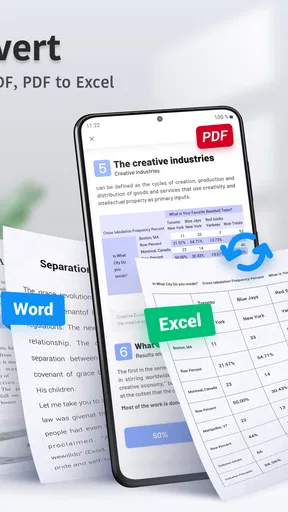
I would also skip it as a primary solution if my main requirement were cloud collaboration, automated document processing, or advanced conversion between many file formats. Its strength is the practical handling of PDF tasks in one mobile environment, not replacing every tool connected with document production.
My final assessment after building a repeatable workflow
PDF Pro: Edit, Sign & Fill PDF earns its place by combining the tasks people most often need when a PDF arrives at an inconvenient time. I like it best when I use it with discipline: preserve the original, choose the right action, verify the whole page, and save a clearly named final copy. Those habits make the app feel much more dependable than simply tapping through a form and hoping the result is correct.
It is not a full desktop publishing environment, and its mobile interface cannot eliminate the limitations of a small screen. The optional purchases also deserve attention before regular use. Still, for everyday signing, annotation, form completion, and modest PDF edits, it offers a sensible balance between convenience and capability.
My recommendation is therefore specific: choose it if you want a mobile PDF utility that covers several common jobs without forcing you to switch apps. Choose something more specialized if your work depends on complex layouts, extensive rewriting, team review, or precise document administration. For the right user, the best feature is the repeatable workflow: open, mark, verify, save, and share with confidence.
Verdict
Strengths of PDF Pro: Edit, Sign & Fill PDF
- Quickly signs and fills forms without needing to print documents.
- Supports annotations, highlights, stamps, and handwritten notes.
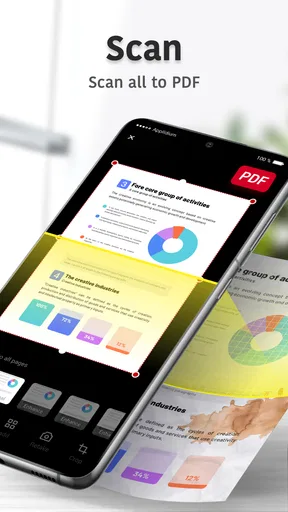
- Useful document scanner turns paper pages into digital PDFs.
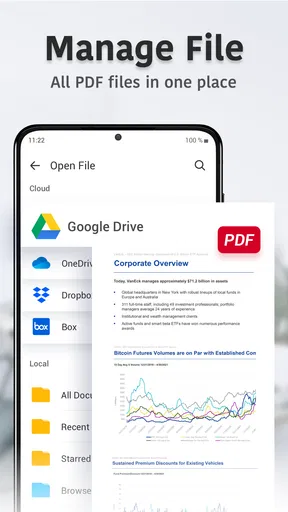
- Files can be organized into folders for easier access.
- Works well for reviewing documents while traveling or offline.
Limitations of PDF Pro: Edit, Sign & Fill PDF
- Some advanced editing tools may require a premium subscription.
- Large or image-heavy PDFs can take longer to load and edit.
- OCR accuracy may vary with poor scans or unusual fonts.
- Cloud and sharing features may depend on account permissions.
- The interface can feel crowded when many editing tools are visible.
Similar Picks in This Category
View All
Google Calendar
Google LLC4.6

Google Drive
Google LLC4.3

Google Assistant
Google LLC3.9

Microsoft OneDrive
Microsoft Corporation4.6

Samsung Calendar
Samsung Electronics Co., Ltd.4.1

Microsoft OneNote: Save Notes
Microsoft Corporation4.6
Frequently Asked Questions
What can PDF Pro: Edit, Sign & Fill PDF do?
PDF Pro is designed to handle common PDF tasks from a mobile device. You can open and read documents, add notes or highlights, fill in interactive forms, insert text, and sign files electronically. Depending on the document and the tools available in your version, you may also be able to organize pages, share files, and save an edited copy for later use.
Can I sign documents electronically with PDF Pro?
Yes, the app is intended to let you add an electronic signature to PDF documents without printing them first. You can generally create a signature by drawing it on the screen or using an available signature tool, then place and resize it on the page. Remember that an electronic signature may not meet the legal requirements of every country or type of contract.
Is PDF Pro: Edit, Sign & Fill PDF free to use?
The application may offer free access to basic PDF viewing or selected editing features, while advanced tools can require a subscription, one-time purchase, or in-app upgrade. Before downloading or starting a trial, check the current App Store or Google Play listing for pricing, renewal terms, and included features. Trial subscriptions should be canceled through your store account if you do not want to continue.
Can I fill out and edit PDFs without an internet connection?
Many basic actions, such as opening downloaded documents, adding annotations, filling fields, or signing a file, may work offline after the app and document are available on your device. However, cloud storage, account synchronization, online conversion, sharing services, or subscription verification may require an internet connection. Offline behavior can also vary according to the file type and operating system.
Are my PDF documents safe when I use the app?
You should review the app’s privacy policy and requested permissions before importing sensitive documents. Files handled locally on the device may have different privacy considerations from files uploaded to cloud services or processed online. Avoid sharing confidential PDFs through unsecured channels, use device security features, and confirm where exported files are saved. Privacy practices and permissions can change with future updates.
